
Steps
- Choose a HEIC or HEIF test file and select JPEG for smaller photographic output or PNG when lossless pixel storage or transparency is relevant.
- Set the available quality option for JPEG and convert one file first.
- Open the result in the destination application and compare color, orientation, dimensions, and detail.
- Use batch conversion only when the entitlement is available, then inspect a sample from the ZIP rather than assuming every source decoded identically.
Supported formats
- Input: HEIC or HEIF files that heic2any can decode in the current browser.
- Output: JPEG or PNG, with batch results packaged as ZIP when available.
- JPEG uses lossy compression; PNG is lossless but can be much larger for photographs.
Things to know
- Some HEIC variants, sequences, auxiliary images, or color profiles may not decode as expected.
- Metadata is not promised to transfer to the new container.
- PNG does not restore detail already lost in the source.
- Large images and batches can consume substantial memory and may fail on constrained devices.
Troubleshooting
- If conversion fails, test a different HEIC from the same device to distinguish file damage from format support.
- If colors differ, compare in color-managed applications and keep the original.
- If the browser becomes memory constrained, convert files individually and close other large tabs.
Common questions
Which output should I choose?
JPEG is usually smaller for photos. PNG is useful when lossless storage or transparency matters, but photographic PNG files can be large.
Will all metadata survive?
No preservation guarantee is made. Treat the output as a compatibility copy and retain the HEIC original.
Why does a batch use more memory?
Several decoded images and output Blobs may coexist while the ZIP is assembled, which can exceed a mobile browser's available memory.
Test results
Test results
heic-conversion-study
Tested
Recorded environment
- Browser
- Google Chrome 150.0.7871.182
- OS
- Windows 11
- App revision
86b9bd1+working-tree
Exact test method
Convert the 640 by 400 synthetic color chart once to JPEG at the tool default quality and once to PNG.
Independent check
Open both outputs in a second image decoder and compare dimensions and sampled color blocks.
Synthetic fixtures
color-chart.heic12.4 KB · Synthetic fixture · CC0 1.0
7c3e14505e02f648…Download fixture ↓
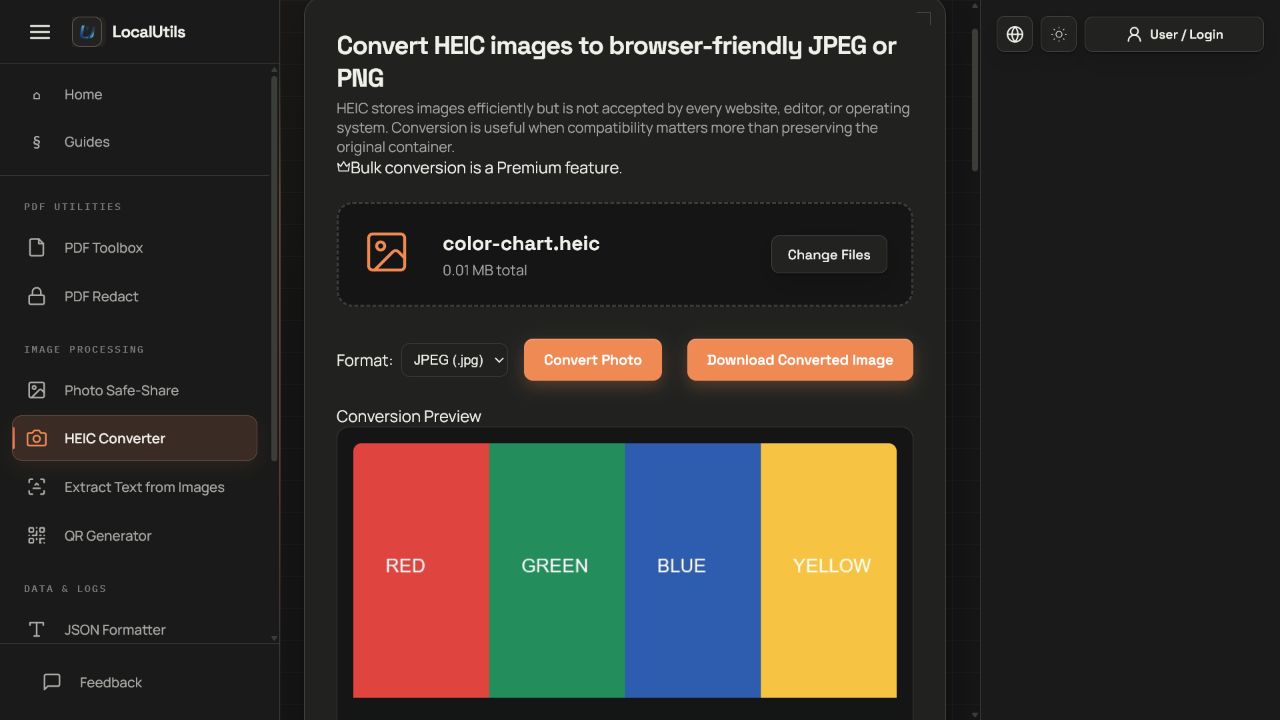
Recorded observations
| Measure | Expected | Observed | Status |
|---|---|---|---|
source_dimensions | 640x400 | 640x400 | Matched |
jpeg_dimensions | 640x400 | 640x400 | Matched |
png_dimensions | 640x400 | 640x400 | Matched |
Scope limits
A single-image fixture does not test bursts, depth maps, motion resources, every color profile, or every HEIC encoder.