
Steps
- Add one PDF to inspect its page count and metadata. Use the single-file controls for rotation, metadata cleanup, or splitting.
- For a split, enter ranges that account for every page exactly once. The tool rejects missing, duplicated, reversed, or out-of-range pages and packages valid parts in a ZIP archive.
- Add two or more PDFs to enter merge mode. Arrange the queue in the intended reading order before creating the combined file.
- Download the result, open it in a second PDF viewer, and only then clear the queue. The queue is stored in this browser's IndexedDB until it is cleared.
Supported formats
- Input: one or more PDF files that PDF.js and PDF-lib can open.
- Merge output: one PDF containing copied pages in queue order.
- Split output: a ZIP archive containing one PDF for each complete page range.
- Rotate or metadata output: one rebuilt PDF downloaded by the browser.
Things to know
- Password-protected or damaged PDFs may fail to open.
- Rotation applies 90 degrees clockwise to every page, not a hand-picked subset.
- Splitting requires all pages to be assigned; it is not a page-deletion shortcut.
- Rebuilding a signed PDF invalidates the original signature relationship, and interactive features should be retested.
Troubleshooting
- If a preview is blank, try opening the source in a desktop viewer and saving a clean copy before retrying.
- If merge order is wrong, reorder the queue before processing; changing filenames does not change queue order.
- If the result is unexpectedly large, inspect whether the source contains high-resolution scans or embedded resources.
Common questions
Does metadata cleanup remove visible names?
No. It changes document-information fields; it does not redact page content or remove identifying text printed inside an image.
Can I merge encrypted PDFs?
Only if the browser libraries can open them without unsupported encryption. Remove protection in an authorized PDF application first when appropriate.
Why must a split include every page?
Complete ranges make accidental page loss visible. If pages should be omitted, create ranges deliberately and review the generated parts before sharing.
Test results
Test results
pdf-toolbox-study
Recorded environment
- Browser
- Google Chrome 150.0.7871.182
- OS
- Windows 11
- App revision
86b9bd1+working-tree
Exact test method
Merge A, B, and C in that order; split the five-page result into 1-2, 3, and 4-5; inspect page tokens, rotation, counts, and document properties.
Independent check
Open outputs in a second PDF viewer and extract text with PDF.js.
Synthetic fixtures
3e2a884652eea7e8…Download fixture ↓392ab3a23621910b…Download fixture ↓9e69475cb0936ea1…Download fixture ↓0e221f47c430d04d…Download fixture ↓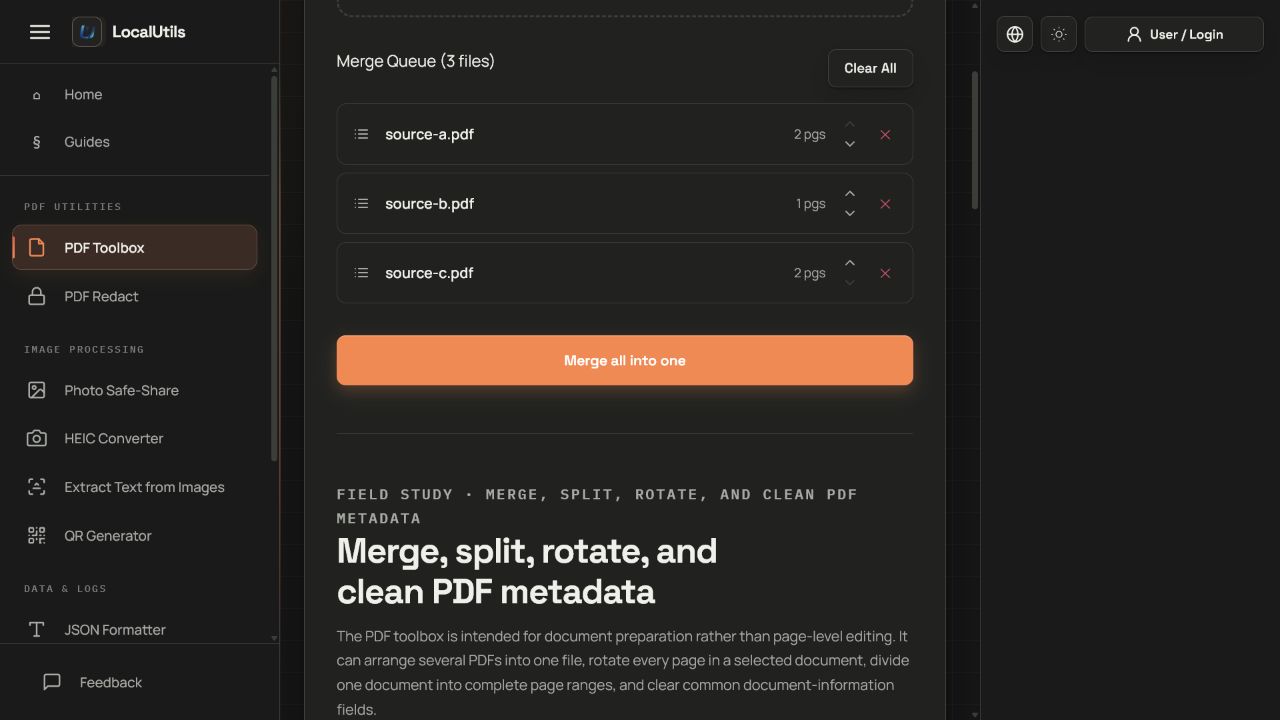
Recorded observations
| Measure | Expected | Observed | Status |
|---|---|---|---|
merged_page_count | 5 | 5 | Matched |
page_order | A1,A2,B1,C1,C2 | A1,A2,B1,C1,C2 | Matched |
split_page_counts | 2,1,2 | 2,1,2 | Matched |
Scope limits
The study does not claim preservation of signatures, forms, bookmarks, attachments, or every metadata object.